 Batch Crop Images
Updated
How to crop multiple images to the same size
- Open the batch cropper and add your images.
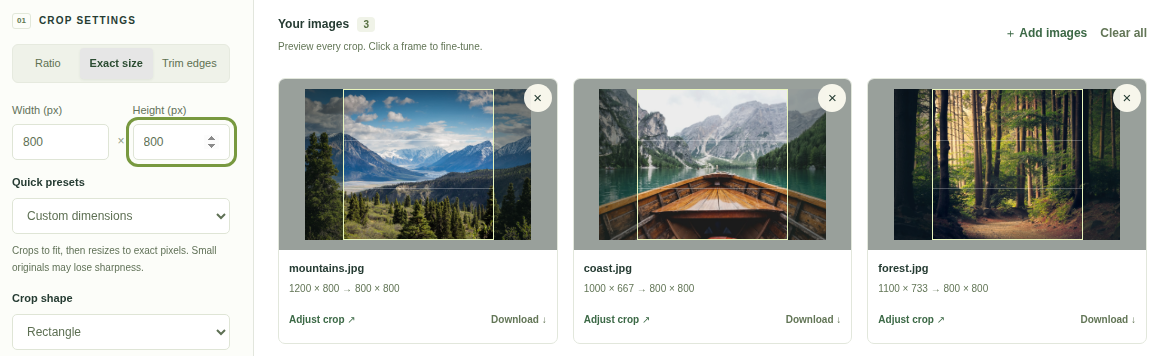
- Choose Exact size, keep the shape set to Rectangle, and enter the required output width and height.
- Check the shared crop shape on every preview. Adjust each crop position where a subject is near an edge.
- Look for source regions smaller than the requested output. Decide whether a smaller final size would be better.
- Choose an export format, download the ZIP, and inspect the dimensions of the extracted files.
Batch crop images to square: if you only need a square shape rather than matching pixel dimensions, start with the 1:1 ratio. You can keep more pixels from larger originals while giving the whole collection one consistent shape.
Circle crops are an exception to rectangular output dimensions: they always export a square PNG. In Exact size mode, the smaller of the requested width and height sets both sides. For example, entering 800 × 600 with Circle selected produces a 600 × 600 PNG with transparent corners.
Choose whole-pixel dimensions up to 8,192 pixels per side, with no more than 32 megapixels in one output. Set these shared options before adjusting individual crops, because changing the shared crop settings resets those frames.
Same ratio and same dimensions are different
An aspect ratio describes width in relation to height. Both a 900 × 900 image and a 3000 × 3000 image are 1:1 squares. They fit the same shape, but they do not contain the same number of pixels.
An exact output size sets the width and height of the final file. To turn mixed images into 800 × 800 files without stretching them, first crop a square region from each original, then resize each of those regions to 800 × 800.
On small screens, scroll the tables sideways to see every column.
| Your goal | Use | What to check |
|---|---|---|
| A gallery with consistent frames | A shared aspect ratio | The subject fits; pixel dimensions may differ. |
| Every file must be 800 × 800 | Exact width and height | The crop area has enough source pixels. |
| Keep the entire photo, just make it smaller | Proportional resizing | Cropping removes content and may not fit this task. |
| Keep a wide subject inside a square | Reconsider the frame or source image | A crop cannot create missing space around the subject. |
What happens with different original sizes?
Consider three source images. Each can be cropped to a square, but the largest square available depends on its shorter side. The following example uses the largest 1:1 crop from each image:
| Original image | Largest 1:1 crop | 800 × 800 export |
|---|---|---|
| 4000 × 3000, landscape | 3000 × 3000 | Cropped, then reduced |
| 3000 × 4000, portrait | 3000 × 3000 | Cropped, then reduced |
| 1600 × 900, wide | 900 × 900 | Cropped, then reduced |
The framing changes in different directions. A wide image loses content on the left and right; a tall image loses content above and below. Review where the subject sits instead of assuming the center works for every file.
Avoid enlarging small crops without checking them
If the selected source region is 600 × 600 and you export it at 1080 × 1080, the browser must create additional pixels. The file meets the requested dimensions, but it cannot recover fine detail missing from the original. Faces, small text, and sharp edges may look softer.
Use larger originals where possible. If the destination allows it, reduce the target dimensions to fit the smallest useful crop in your collection. Otherwise inspect the enlarged result at the size people will actually view it.
Consistent product photos need consistent framing, too
Two product photos can both be 800 × 800 while one object fills almost the whole frame and the other looks tiny. Matching dimensions solves file consistency; matching the visible size and spacing of the subject is a separate composition task.
Review the whole set before export. Pay special attention to tall and wide objects. A shared square frame is useful only if the important parts remain visible in each image.
Does cropping change the original file?
Batch Crop Images works on the images selected into the browser and downloads new output files. Keep the originals so you can choose a different frame later. After export, compare a few results with their sources before using the whole batch.
Make one consistent batch
Set your target width and height, review the frames, and download the images together.
Choose an exact size